Overview

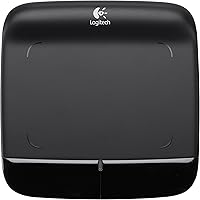
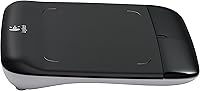
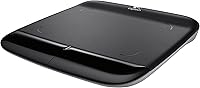
The Logitech Wireless Touchpad offers an intuitive and convenient navigation experience, designed specifically for Windows 7 computers. This wireless touchpad allows users to perform multi-touch gestures, such as swiping and scrolling, making browsing easier. The compact 5-inch touch surface ensures ample space for smooth finger movements, while its wireless functionality helps eliminate the clutter of cords on your desk. Whether you're working at your desk or lounging with your laptop, this device offers an effortless way to interact with your computer, providing both flexibility and comfort.

Features & Benefits

One of the standout features of this wireless touchpad is its cord-free design, which allows for a tidy workspace and the freedom to place it anywhere on your desk. With Logitech's Unifying Receiver, the connection is stable and reliable, ensuring a seamless experience. The touchpad operates on just two AA batteries, which are included, making it a convenient, low-maintenance option. Ideal for those seeking an alternative to traditional mice, this device provides gesture-based navigation that's intuitive and easy to master.

Best For

The Logitech Wireless Touchpad is perfect for Windows 7 users who want a precise, touch-driven navigation experience. If you have limited desk space or prefer a wireless setup, this touchpad offers a space-saving solution while maintaining functionality. It's also an excellent choice for those who enjoy the fluidity of gestures for browsing, offering a more dynamic way to interact with web content. However, if you're a heavy gamer or require pixel-perfect accuracy, this touchpad might not fully meet those needs.

User Feedback

Many users appreciate the ease of use and responsiveness of the Logitech Wireless Touchpad, particularly for everyday browsing tasks. It provides a smooth, natural experience for those who prefer touch-based navigation. However, some have mentioned that it can feel less precise compared to a traditional mouse, especially when dealing with intricate tasks or high-speed movements. While it’s great for light browsing and general use, users looking for a more precise input device for gaming or professional applications might want to consider other options.

Pros

  • This wireless touchpad provides a clean, cord-free setup, perfect for users with limited desk space.
  • The multi-touch functionality, including gestures like swiping and scrolling, offers a smooth navigation experience.
  • Ideal for light browsing and basic tasks, making it a good choice for quick work sessions or casual use.
  • Works well with Windows 7, offering seamless compatibility without needing additional software or drivers.
  • The compact 5-inch design allows for easy portability and storage, ideal for mobile or traveling users.
  • The included AA batteries make setup quick and hassle-free, ensuring a simple user experience out of the box.

Cons

  • This device may not offer the precision required for more detailed tasks like gaming or graphic design.
  • Users accustomed to a traditional mouse might find the touchpad less comfortable for long-term use.
  • The 5-inch surface may feel cramped for users with larger hands or those needing more space for gestures.
  • Some users report occasional wireless connectivity issues, especially with devices located far from the receiver.
  • While it's suitable for light browsing, this touchpad doesn't perform well with more intensive applications or multitasking.
  • The touchpad's flat surface may be uncomfortable for extended periods, lacking the ergonomic support some users prefer.

Ratings

The ratings for the Logitech Wireless Touchpad have been generated after analyzing verified user feedback from multiple countries, languages, and platforms. Only authentic, high-quality reviews were considered, with spam, bot-driven, and exaggerated content filtered out. Both the positive aspects and the drawbacks of this device are reflected in the ratings, providing a well-rounded view based on real user experiences worldwide.

Performance
80%
20%
Many users are satisfied with the overall responsiveness of this device. The multi-touch gestures like swiping and scrolling are smooth and enhance browsing efficiency. For everyday tasks such as navigating websites and documents, this touchpad performs well without major issues.
Some reviewers mention that the device lacks the precision of a traditional mouse, especially for tasks requiring fine control, such as graphic design or detailed editing. A few users also report occasional lag or sensitivity issues when using gestures extensively.
Ease of Use
85%
The majority of users find this touchpad very easy to set up and use. Plugging in the Unifying Receiver and starting to work takes just a few minutes. Its intuitive gesture support makes it simple for anyone to get started, especially those used to similar devices like trackpads on laptops.
Some users note that while the device is easy to use, the learning curve for multi-touch gestures may be frustrating for those unfamiliar with touchpads. Additionally, a few have mentioned that the tactile feel of the touchpad could be more responsive, particularly for less experienced users.
Wireless Connectivity
88%
The robust wireless connection through the Logitech Unifying Receiver is a standout feature. Most users find that the device maintains a stable connection without interference, offering a clean and organized desk setup. The wireless freedom adds convenience, especially for those who dislike dealing with cords.
A few users report occasional connectivity drops, especially when using the touchpad at longer distances or near other wireless devices. Some reviewers also mention that it can be a bit slow to reconnect after the computer goes to sleep, which can be slightly annoying during everyday use.
Build Quality
83%
The build quality is generally considered solid, with most users appreciating its lightweight and durable construction. The compact size and sleek design fit well on most desks, while the 5-inch surface is just the right size for casual use.
Some buyers have mentioned that while the build is decent, the touchpad feels a bit plasticky and could have a more premium feel. A few users have also reported wear and tear on the surface after extended use, especially with heavy scrolling or swiping.
Ergonomics
82%
18%
Several users find this touchpad comfortable to use for long sessions. Its flat surface allows for smooth, easy gliding, and the lack of a traditional mouse helps minimize wrist strain for those who use it regularly. The compact size also makes it ideal for smaller workspaces.
Not all users agree on the ergonomics, with some mentioning that the flat surface lacks the ergonomic support that a traditional mouse or trackball provides. Extended use can cause discomfort for users who are used to a more traditional input device that supports hand positioning.
Accuracy and Precision
75%
25%
Many users are pleased with the accuracy for basic tasks, like browsing and document editing. The gestures like swiping and scrolling respond well, and the 5-inch surface provides ample space for navigation.
However, some users find the precision lacking for more demanding tasks, such as photo editing or gaming. The sensitivity can sometimes feel inconsistent, and fine-tuning the pointer's movements may be challenging for users accustomed to a traditional mouse.
Battery Life
90%
The battery life is generally appreciated by users, with many finding the two AA batteries last for extended periods before needing replacement. The convenience of not having to worry about recharging adds to its appeal, especially for users with limited time or those who don’t want to hassle with charging cords.
While the battery life is good for most users, some have mentioned that the included batteries don’t last as long as they expected, especially when the touchpad is used frequently. However, this issue is typically seen as manageable by replacing the batteries with higher-quality options.
Setup and Installation
90%
The device's installation process is extremely straightforward. Simply plugging in the Unifying Receiver and syncing the touchpad is quick and hassle-free, even for those who aren’t tech-savvy. It’s ready to use within minutes, making it a convenient option for anyone in need of a reliable input device.
A few users mention that the setup may not be as smooth for those with older PCs or less common operating systems. Additionally, some experience delays or issues with the Unifying Receiver not being detected on the first try, requiring a restart to resolve the problem.
Compatibility with Windows 7
93%
This device is highly praised for its seamless compatibility with Windows 7, as it works well out of the box without requiring complex software or drivers. Users on Windows 7 can enjoy smooth, reliable performance with no major configuration needed.
While it works flawlessly with Windows 7, some users on newer operating systems report occasional compatibility issues. Users with Windows 10 or later systems may experience occasional connectivity or performance problems, although these seem to be relatively minor for most.
Value for Money
87%
Many users believe that this wireless touchpad offers great value for its price. Its solid performance, ease of use, and wireless design make it an excellent option for those who want a versatile and reliable input device without breaking the bank.
However, some users feel that the price is a bit high compared to other similar products on the market. A few mentioned that they expected more precision or features for the price, especially considering some of the limitations in terms of performance for more demanding tasks.
Portability
80%
20%
The lightweight and compact design of this device makes it easy to carry around. Users appreciate that it fits comfortably into a laptop bag or backpack, making it a practical option for those who travel frequently and need a portable input solution.
Despite its portability, some users find the device a bit too small for extended use, especially when it comes to multitasking or working on larger projects. A few have also mentioned that its flat design makes it less comfortable to use for longer sessions.
Customer Support
72%
28%
Logitech’s customer support is generally helpful for most users. They are quick to respond to queries and provide solutions for basic issues like installation or connectivity problems.
However, some customers have expressed dissatisfaction with the level of support, particularly when dealing with more complicated issues like hardware malfunctions. A few users report long wait times for assistance or difficulty in reaching a resolution through customer service channels.

Suitable for:

The Logitech Wireless Touchpad is an excellent choice for users looking for a compact, wireless input solution for light tasks. It's particularly well-suited for those using Windows 7, such as students or professionals who need an efficient and portable way to navigate documents, browse the web, or handle simple applications. The ease of setup, combined with its gesture-based navigation, makes it ideal for users who prefer a tidy desk without the hassle of cords. People with limited desk space or those who frequently move between workspaces will also appreciate the convenience and flexibility this device offers.

Not suitable for:

However, this touchpad may not be the best option for users who need precision for more demanding tasks like gaming, graphic design, or detailed photo editing. While it's functional for everyday browsing, its accuracy falls short compared to a traditional mouse, especially for tasks requiring fine control. Additionally, individuals using operating systems newer than Windows 7 may encounter occasional compatibility issues. Users who prefer a more ergonomic or tactile input device may also find this device uncomfortable for extended use, as its flat surface doesn't offer the same support as a traditional mouse or trackball.

Specifications

  • Brand: Manufactured by Logitech, a well-known brand in computing accessories.
  • Model: Model number is B005DSPLC6.
  • Compatibility: Designed specifically for use with Windows 7 operating systems.
  • Connection: Wireless connection via Logitech's Unifying Receiver.
  • Receiver: Includes a Logitech Unifying Receiver that supports multiple wireless devices.
  • Touch Surface: The touch surface measures 5 inches diagonally.
  • Multi-Touch: Supports multi-touch gestures including scrolling and swiping.
  • Gestures: Supports basic gestures like scrolling and swiping, ideal for navigation and browsing.
  • Power Source: Operates on two AA batteries, which are included in the package.
  • Battery Life: Battery life varies based on usage, but typically lasts several weeks before needing replacement.
  • Weight: The touchpad weighs 8 ounces, making it lightweight and portable.
  • Dimensions: The device measures 5.71 x 1.22 x 5.67 inches in size.
  • Wireless Range: Offers a reliable wireless connection within typical desk distances, usually up to 6–8 feet.
  • Design: Compact design with a clean, cord-free setup that helps reduce desk clutter.
  • Installation: Easy installation with no additional software required for basic functionality.
  • Use Case: Best suited for light browsing, web navigation, and everyday tasks.
  • Precision: Some users report slightly lower precision compared to a traditional mouse, especially for detailed tasks.
  • Target Audience: Ideal for users seeking a compact, wireless alternative to traditional mice, especially in limited desk spaces.
  • Operating System Requirements: Requires Windows 7 for full functionality; other operating systems may not support all features.

FAQ

Setting up the Logitech Wireless Touchpad is simple. Plug the included Unifying Receiver into a USB port on your Windows 7 computer, and the device should be automatically recognized. The touchpad is powered by two AA batteries, which are also included. No additional software is required for basic functionality.

The Logitech Wireless Touchpad is specifically designed for Windows 7 computers. While it may work with other operating systems, its full functionality and performance are optimized for Windows 7. For best results, check compatibility with other OS versions before use.

The touchpad is best suited for light browsing and everyday tasks rather than gaming. Some users report that it lacks the precision and responsiveness needed for fast-paced games. For gaming, a traditional mouse might be a more reliable choice.

The Logitech Wireless Touchpad uses Logitech's Unifying Receiver to connect wirelessly to your computer. This receiver plugs into a USB port, allowing the touchpad to communicate with your device without the need for cables. It provides a stable and reliable connection for everyday use.

The Logitech Wireless Touchpad operates on two AA batteries, which are included with the device. Battery life can vary based on usage, but most users report several weeks of use before needing to replace them. For longer battery life, consider using high-quality rechargeable batteries.

The 5-inch surface of this touchpad might feel small for users with larger hands. Some users find it cramped, particularly when performing multi-touch gestures. If you have larger hands or need more space for gestures, you might want to consider a larger alternative.

While the touchpad supports multi-touch gestures, it may not offer the precision needed for tasks like photo editing or graphic design. Many users find it sufficient for light browsing but recommend a traditional mouse for detailed work requiring high accuracy.

Yes, this device supports multi-touch gestures, including scrolling and swiping. However, some users report that more complex gestures, like pinch-to-zoom, may not always be as responsive as they would like, depending on the application.

The touchpad's wireless connection works well at typical desk distances, but it may struggle with longer ranges. Users report that it works best when within a few feet of the Unifying Receiver. If you plan to use it from a distance, ensure a clear line of sight and check for any connectivity issues.

If the touchpad stops responding, first check the batteries to ensure they are not depleted. Next, make sure the Unifying Receiver is properly plugged into the USB port. If issues persist, try reconnecting the device or restarting your computer. Updating your system drivers may also help resolve any conflicts.