Overview

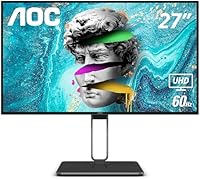
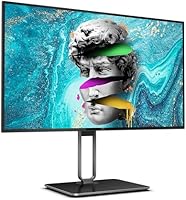
The AOC U27U2DP 27″ 4K Monitor arrived in late 2024 as a productivity-focused display that punches well above its weight class by bundling genuine docking functionality into a mid-range package. What separates it from similarly priced competitors is the single-cable USB-C docking — plug in one cable and your laptop gets power, video, and data simultaneously. The four-sided frameless design keeps things tidy, especially if you are running a dual-monitor arrangement. With over 3,000 ratings and a 4.3-star average, buyer reception has been strong. That said, this is not a monitor built for competitive gaming or professional color grading — it is squarely aimed at the home office crowd who wants more screen real estate without overspending.
Features & Benefits

The headline feature of this docking monitor is its USB-C with 90W delivery, which handles data transfer, 4K video output, and laptop charging through one cable — confirmed working with MacBooks, Dell XPS, and ThinkPads. The 27-inch IPS panel covers 98% DCI-P3, producing accurate, punchy colors for document work, media consumption, and light photo editing. DisplayHDR 400 is on board, though treat it as a minor perk rather than a headline capability. The built-in KVM switch lets you toggle one set of peripherals between two computers, a feature rarely found at this price point. A wired Ethernet port, height-adjustable stand, and three USB 3.0 ports round out a remarkably complete connectivity package.

Best For

This AOC 4K monitor is an especially strong pick for work-from-home professionals who connect a laptop daily and want to cut down on cable clutter. If you run a personal machine alongside a work laptop, the KVM switch alone justifies serious consideration. It is also a compelling upgrade path for anyone still on a 1080p or 1440p display — the jump to 4K at 27 inches is immediately noticeable in everyday tasks like reading documents or browsing. Light creative work, such as photo culling or content review, sits comfortably within its capabilities. One caveat: if your workspace gets a lot of direct sunlight, the glossy panel surface may become a frustration.

User Feedback

With thousands of verified purchases behind it, the consensus skews positive. USB-C charging reliability earns consistent praise from MacBook, ThinkPad, and XPS owners who appreciate that the single-cable setup genuinely delivers as described. Image sharpness at native 4K also draws frequent compliments, particularly for text-heavy work. On the flip side, the glossy screen attracts enough glare complaints from window-adjacent desks to warrant a real heads-up. The OSD navigation has been called clunky by a notable share of reviewers, and KVM setup trips up first-timers due to thin documentation. Stand quality is generally well-regarded, though a handful of users would prefer cleaner cable routing built into the arm.

Pros

  • Single USB-C cable handles 4K video, data transfer, and up to 90W laptop charging simultaneously.
  • Confirmed working reliably with MacBook, Dell XPS, ThinkPad, and other popular USB-C laptops.
  • Built-in KVM switch lets you share one keyboard and mouse across two computers — rare at this price.
  • Onboard RJ45 Ethernet port provides a stable wired network connection without a separate dock or adapter.
  • 98% DCI-P3 color coverage produces accurate, vibrant images well beyond what budget IPS panels typically offer.
  • Four-sided frameless design keeps multi-monitor setups looking clean and minimizes visual borders between screens.
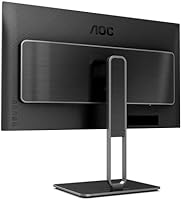
  • Height, tilt, and swivel adjustments come standard, so you can dial in ergonomics without buying a separate arm.
  • Three USB 3.0 ports on the monitor hub reduce desk clutter by keeping peripherals plugged into one central point.
  • At 4K on a 27-inch panel, text sharpness and image detail represent a substantial upgrade from 1440p or 1080p displays.
  • Strong buyer satisfaction with over 3,000 ratings averaging 4.3 stars speaks to consistent real-world performance.

Cons

  • The glossy panel surface causes noticeable glare in bright rooms or near uncovered windows.
  • OSD menu navigation is considered clunky and unintuitive by a meaningful share of buyers.
  • KVM setup documentation is thin, leading to unnecessary confusion during initial configuration.
  • DisplayHDR 400 certification is entry-level and delivers only modest improvement over non-HDR content in practice.
  • No matte screen option is available for this model, limiting placement flexibility in mixed-light environments.
  • The U27U2DP is not suited for fast-paced gaming due to its focus on color accuracy over response time.
  • Cable routing through the stand could be more elegantly handled according to some long-term users.
  • Buyers who do not need USB-C docking or KVM pay for features they will never use, reducing value for desktop PC setups.

Ratings

The AOC U27U2DP 27″ 4K Monitor scores below are generated by our AI system after analyzing thousands of verified global buyer reviews, with spam, bot activity, and incentivized feedback actively filtered out. The ratings reflect what real home office workers, dual-computer users, and everyday professionals experienced after extended use — strengths and frustrations included. No score has been softened to protect brand image.
USB-C Docking Performance
91%
For laptop users, this is the feature that justifies the purchase on its own. MacBook owners, Dell XPS users, and ThinkPad professionals consistently report that plugging in a single USB-C cable delivers stable 4K output, fast data transfer, and reliable laptop charging without fuss or driver headaches.
A small number of users with older USB-C laptops that lack full DisplayPort Alt Mode support found the single-cable experience did not work as expected. Compatibility is excellent across modern hardware, but it is worth verifying your laptop spec before assuming it will work out of the box.
Image Clarity & Sharpness
88%
At native 4K on a 27-inch panel, text rendering is exceptionally crisp — spreadsheets, documents, and browser tabs look noticeably sharper than on a 1440p or 1080p display of the same size. Users upgrading from lower-resolution monitors frequently describe the difference as immediately obvious.
Pixel density is impressive for productivity, but some users note that at typical desk distances, scaling settings in Windows or macOS require adjustment to get UI elements to a comfortable size. This is a system configuration issue rather than a panel defect, but it catches first-time 4K users off guard.
Color Accuracy
83%
The 98% DCI-P3 coverage is a genuine differentiator at this price point. Hobbyist photographers and content reviewers praise the natural, punchy color reproduction for everyday creative tasks, with skin tones and gradients looking noticeably more lifelike than on budget IPS panels.
Out-of-box calibration is good but not perfect — users doing precise color work sometimes noted a slight warm bias that benefited from a quick manual adjustment in the OSD. For professional-grade color grading, the panel falls short of factory-calibrated alternatives costing significantly more.
Connectivity & Port Selection
89%
The combination of USB-C, RJ45 Ethernet, and three USB 3.0 ports makes this docking monitor one of the better-connected displays at its size and price. Work-from-home users particularly appreciate having wired Ethernet through the monitor, eliminating the need for a separate USB hub or network adapter.
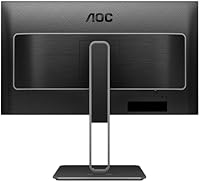
Users who expected more than one HDMI input or a dedicated audio jack found the rear panel slightly limiting for complex multi-device setups. The port layout on the back is also reported as awkward to access once the monitor is positioned on a desk.
KVM Switch Usability
67%
33%
When it works, the KVM functionality is genuinely useful — being able to toggle a single keyboard and mouse between a personal laptop and a work machine through one monitor is a real convenience that saves desk space and eliminates peripheral duplication.
The setup process is where this feature loses points. Documentation is thin and the OSD-based configuration is not intuitive, leading to repeated complaints from users who expected plug-and-play behavior. Once configured correctly it performs reliably, but the initial learning curve is steeper than it should be.
HDR Performance
58%
42%
DisplayHDR 400 certification does provide a mild improvement in highlight handling for compatible streaming content and HDR-enabled applications. Users who watch movies or YouTube on this monitor occasionally note that bright scenes look slightly more dynamic than on non-HDR panels.
DisplayHDR 400 is the lowest tier of VESA's HDR certification, and it shows in practice. There is no local dimming, peak brightness is modest, and the difference versus SDR content is subtle enough that many users report not noticing it at all during normal use.
Glare & Reflections
54%
46%
In a controlled environment with indirect or behind-the-monitor lighting, the glossy surface produces rich, saturated colors that look noticeably vibrant compared to matte-coated alternatives. Users in darker home office setups or basement workspaces rarely mention glare as a concern.
In a typical bright office or near a window, the glossy panel is a recurring pain point in user reviews. Direct reflections from overhead lights or daylight can make the screen genuinely difficult to use for extended sessions, and there is no matte finish option available for this model.
OSD & Menu Navigation
61%
39%
The OSD covers all the necessary adjustments — brightness, color temperature, input selection, and KVM configuration — so the functionality is complete. Users who invest time learning the menu structure report being able to make adjustments efficiently once familiar with the layout.
The menu navigation buttons and their on-screen mapping are described by a notable share of buyers as unintuitive and slow to use. Navigating multiple levels to change a basic setting like input source feels more cumbersome than on competing monitors in the same price range.
Stand Quality & Ergonomics
82%
18%
Height adjustment, tilt, and swivel are all included and function smoothly according to the majority of buyers. The stand holds its position firmly without creeping drift over time, and the range of height movement is generous enough to suit both seated and standing desk use.
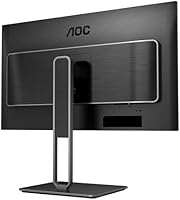
Cable management routing through the stand arm is functional but not elegant — a handful of users noted the channel feels too narrow for thicker cable bundles. Users who prefer a very minimalist cable setup behind their monitor may find the routing solution slightly frustrating.
Build Quality & Materials
79%
21%
The overall construction feels solid for a monitor in this price tier. The plastic chassis is well-finished, bezels are consistent on all four sides, and the stand base does not wobble during normal desk use. First impressions on unboxing are generally positive across buyer reviews.
The back panel housing and some internal stand components have a hollow feel when tapped, which gives some buyers pause about long-term durability. Nothing has been widely reported as breaking, but the materials do not convey the premium rigidity of higher-cost alternatives.
Value for Money
86%
Considered as a 4K monitor plus USB-C dock plus KVM switch plus Ethernet adapter, the combined value proposition is hard to match at this price. Buyers who previously paid for a separate docking station frequently note that this docking monitor replaced multiple devices and simplified their setup significantly.
Buyers who only need a basic 4K display without docking or KVM functionality may find they are paying for bundled features they will never use. For pure display value alone, competing 4K monitors occasionally offer better panel specifications or faster refresh rates for a similar outlay.
Setup & Out-of-Box Experience
74%
26%
Physical assembly of the stand is straightforward, and the monitor powers on and displays a signal quickly for standard HDMI or DisplayPort connections. Most buyers are up and running within a few minutes for basic display use, and USB-C single-cable connections typically work without driver installation.
The KVM and multi-input configuration steps introduce meaningful complexity that the included documentation does not handle well. Users setting up the monitor as a full docking hub for the first time may spend considerably longer troubleshooting input and KVM settings than the out-of-box experience suggests.
Multi-Monitor Compatibility
84%
The four-sided frameless design is a genuine advantage when running two or more monitors side by side. The border between adjacent screens is minimal, and users building multi-display productivity setups praise how cohesive the combined image looks compared to monitors with thick bezels.
Slight bezel inconsistency between units from different production batches has been flagged occasionally in user reviews, which can create a minor visual mismatch in tightly arranged dual setups. It is not a widespread issue, but perfectionists running matched pairs may want to verify before purchase.
Brightness & Visibility
72%
28%
In a reasonably lit indoor environment, brightness levels are sufficient for comfortable all-day use. Users working in the evening or in rooms with controlled ambient lighting rarely raise brightness as a concern, and the IPS panel maintains readability across a wide range of content types.
Peak brightness is not best-in-class, and when combined with the glossy surface, it means the monitor struggles in high-ambient-light conditions. Users who regularly work with sunlight hitting their desk from the side or front reported needing to crank brightness to maximum just to maintain comfortable visibility.

Suitable for:

The AOC U27U2DP 27″ 4K Monitor was clearly designed with the modern home office worker in mind, and it delivers best for people who connect a laptop to an external display every single day. If you are using a MacBook, Dell XPS, ThinkPad, or any USB-C laptop that supports DisplayPort Alt Mode, the single-cable connection handles power, video, and data simultaneously — which makes a real difference in daily quality of life. Dual-computer users will find the built-in KVM switch particularly practical, letting one keyboard and mouse toggle between a personal and work machine without extra hardware. Anyone still running a 1080p or 1440p display will notice an immediate, meaningful sharpness improvement when switching to native 4K at 27 inches, especially for reading text, spreadsheets, or detailed documents. For light creative tasks like photo culling, content review, or graphic design at a non-professional level, the 98% DCI-P3 color coverage holds up well. It is also a natural fit for compact desk setups where cable tidiness and a clean aesthetic matter.

Not suitable for:

There are a few categories of buyers who should think carefully before choosing this docking monitor. Competitive gamers will find no meaningful refresh rate advantage here — this is an office panel, not a fast-response display, and it does not prioritize low latency or high frame rates. Professional photographers, video editors, and colorists who depend on factory-calibrated panels or wide color volume beyond DCI-P3 should look toward purpose-built creative monitors, as the AOC U27U2DP 27″ 4K Monitor is not positioned for that level of accuracy. The glossy screen surface is a genuine dealbreaker for anyone working in a bright room with windows behind or in front of them, as glare can become distracting and tiring over long sessions. Users who dislike configuring hardware through a limited OSD interface may also find the setup process more frustrating than expected, especially when activating the KVM function. Desktop PC users who do not need USB-C docking or KVM may find competing monitors offer better value for the same resolution at this size.
Specifications

  • Panel Type: The display uses an IPS (In-Plane Switching) panel, which delivers consistent colors and wide viewing angles compared to TN or VA alternatives.
  • Resolution: Native resolution is 3840 x 2160 pixels, commonly referred to as 4K UHD, providing sharp detail across the full 27-inch surface.
  • Screen Size: The viewable display area measures 27 inches diagonally, making it a comfortable size for productivity work without requiring an ultrawide footprint.
  • Aspect Ratio: Standard 16:9 widescreen aspect ratio, compatible with virtually all operating systems, video formats, and productivity layouts.
  • Color Coverage: The panel covers 98% of the DCI-P3 color space, enabling accurate, vivid color reproduction suitable for light creative and media work.
  • HDR Support: DisplayHDR 400 certification is included, offering a modest improvement in contrast and brightness handling over non-HDR content.
  • Viewing Angles: IPS technology provides 178-degree horizontal and vertical viewing angles, so colors and contrast remain stable when viewed from off-center positions.
  • USB-C Power: The USB-C port supports up to 90W Power Delivery, allowing compatible laptops to charge while receiving a 4K video signal through a single cable.
  • Connectivity: Ports include USB-C, RJ45 Ethernet, and three USB 3.0 Type-A ports, with additional display inputs also available on the rear panel.
  • KVM Switch: A built-in KVM switch allows one connected keyboard and mouse to control two separate computers through the monitor without additional switching hardware.
  • Network Port: An integrated RJ45 Ethernet port enables a wired network connection via the monitor, useful for users who need stable internet without a separate dock.
  • Stand Adjustments: The included stand supports height adjustment, tilt, and swivel, covering the core ergonomic adjustments without requiring an aftermarket monitor arm.
  • Screen Surface: The panel surface is glossy, which enhances color vibrancy but can produce noticeable reflections in brightly lit or window-adjacent environments.
  • Bezel Design: The monitor is frameless on all four sides, minimizing visual borders and making it well-suited for side-by-side multi-monitor configurations.
  • Dimensions: With the stand attached, the unit measures approximately 8.48 x 24.17 x 20.98 inches (D x W x H), fitting most standard desks comfortably.
  • Weight: The complete unit including stand weighs 22.2 pounds, which is typical for a 27-inch monitor with a full-adjustability stand.
  • Release Date: The U27U2DP was first made available in September 2024, making it a relatively recent addition to AOC's productivity monitor lineup.
  • Brand & Model: Manufactured by AOC under the U27 series, with the specific model designation U27U2DP identifying this particular configuration.

Related Reviews

ViewSonic VP2768a-4K 27-Inch 4K Monitor
86%
94%
Color Accuracy
88%
Ergonomics & Comfort
91%
Value for Money
89%
Build Quality
85%
Ease of Setup
More
ViewSonic VG2756-4K 27-Inch 4K Docking Monitor
80%
91%
USB-C Docking Performance
88%
Display Clarity
74%
Connectivity & Port Selection
86%
Ergonomics & Stand Quality
71%
Color Accuracy
More
ViewSonic VA2756-4K-MHD 27-Inch 4K Monitor
84%
92%
Display Quality
90%
Color Accuracy
88%
Design & Build Quality
85%
Ease of Setup
89%
Connectivity Options
More
ViewSonic VX2776-4K-MHDU 27-inch 4K IPS Monitor
75%
91%
Image Clarity
93%
USB-C Convenience
78%
Color Accuracy
54%
HDR Performance
46%
Stand & Ergonomics
More
Dell S2725QC 27-inch 4K USB-C Monitor
81%
93%
Image Clarity
88%
Color Accuracy
91%
USB-C Connectivity
86%
Refresh Rate & Smoothness
89%
Build Quality & Design
More
KOORUI N07 27-inch 4K IPS Monitor
76%
93%
Image Sharpness
89%
Color Accuracy
88%
Color Gamut Coverage
91%
Value for Money
82%
Eye Comfort
More
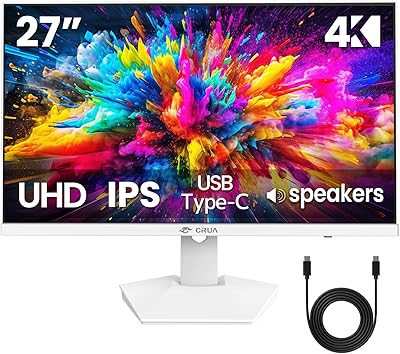
CRUA 27″ 4K UHD Monitor
83%
91%
Display Quality
94%
Color Accuracy
88%
Ease of Setup
85%
Build Quality
74%
Gaming Performance
More
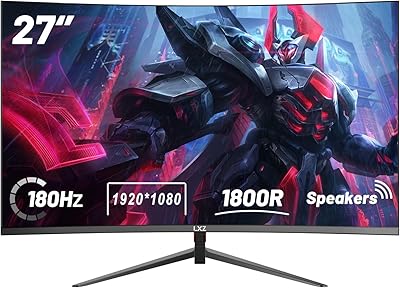
LXZ 27-inch 4K Monitor
82%
92%
Value for Money
88%
Display Quality
91%
Ease of Setup
85%
Connectivity Options
76%
Build Quality
More
AOC Q27G4XN 27″ Gaming Monitor
79%
91%
Image Sharpness
88%
Motion Performance
83%
Refresh Rate Value
79%
Color Accuracy
52%
Glare & Reflections
More
Dell P2721Q 27-inch 4K Monitor
75%
93%
Image Sharpness
81%
Color Accuracy
89%
USB-C Connectivity
63%
Build Quality
77%
Ergonomics & Adjustability
More

FAQ

Yes, the USB-C port delivers up to 90W of power, which is sufficient to charge most MacBook Pro models while simultaneously outputting 4K video and transferring data. You can leave your original charger in your bag on most days. Just make sure your MacBook supports DisplayPort Alt Mode over USB-C, which all modern Apple laptops do.

It does, and this is one of the more consistently praised aspects of the U27U2DP among buyers. Both the Dell XPS lineup and ThinkPad series support USB-C with DisplayPort Alt Mode, so a single cable connection for video, data, and charging works as expected on those machines.

The concept is straightforward: you connect two computers to the monitor using different inputs, and the KVM lets you share one keyboard and mouse between them. In practice, the setup process trips up some users because the documentation is sparse. AOC does have setup guidance available, but budget some time for initial configuration and expect a bit of trial and error if you are not already familiar with KVM workflows.

It is a legitimate concern depending on where your desk is. If you sit facing a window or have overhead lighting that hits the screen directly, reflections can be genuinely distracting over a long workday. If your setup has controlled lighting or the monitor faces away from light sources, most users report no significant issues. It is worth thinking about your specific room layout before purchasing.

DisplayHDR 400 is the entry-level tier of HDR certification, so expectations should be measured accordingly. You will notice a slight improvement in bright highlights and shadow detail compared to non-HDR content, but it does not produce the dramatic HDR impact you would see on a high-brightness OLED or Mini-LED display. Treat it as a background feature rather than a selling point.

Absolutely, and the four-sided frameless design makes it particularly well-suited for that. The thin borders on all sides keep the visual gap between screens minimal when placed next to another monitor of similar thickness. Just make sure your laptop or desktop GPU has the available output ports you need for the second connection.

The general consensus among buyers is that the stand is solid and holds position well after adjustment. Height, tilt, and swivel all function reliably. A small number of users have noted they would prefer neater cable management built into the stand arm, but structural stability is not a common complaint.

Beyond USB-C, the AOC U27U2DP 27″ 4K Monitor includes additional video inputs — typically HDMI and DisplayPort — which allows desktop users or those without USB-C to connect without any compromise. This makes it flexible for mixed setups or for users who want to connect a gaming console on one input and a work laptop on another.
For hobbyist or semi-professional photo work, yes. The 98% DCI-P3 coverage means colors are reproduced with good accuracy and saturation, which is more than adequate for reviewing and editing photos for web or print. Professional photographers who require factory-calibrated panels, wide color volume, or hardware calibration support will want to look at purpose-built creative displays, but for most enthusiast-level editing this docking monitor holds its own.

It functions as a standard wired Ethernet connection routed through the monitor — when your laptop is connected via USB-C, the monitor passes the network signal through to your machine without any additional drivers in most cases. This is a genuinely useful feature for anyone who prefers a stable wired connection over Wi-Fi but does not want to deal with a separate USB Ethernet adapter.