Overview

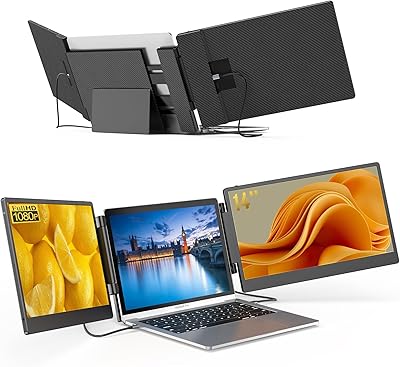
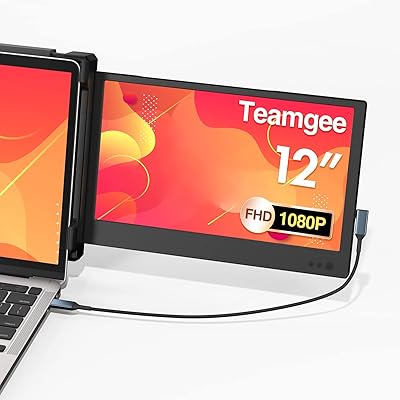
The KYY X90A 14-inch Laptop Screen Extender arrives at a moment when working from a single screen feels genuinely limiting — whether you're bouncing between a café and a co-working space or grinding through a long session at a hotel desk. It attaches to laptops ranging from 12 to 16 inches and adds two extra 14-inch IPS panels through a single cable, creating a compact triple-screen workstation on the go. One important caveat before purchase: driver installation is mandatory on every supported platform, macOS included. That's not a dealbreaker by any stretch, but skipping that step is behind most of the sharpest one-star reviews. Screen real estate is genuinely impressive; patience during initial setup is equally necessary.
Features & Benefits

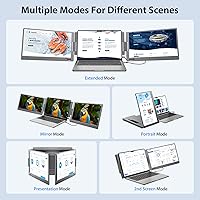
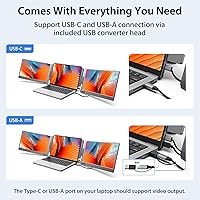
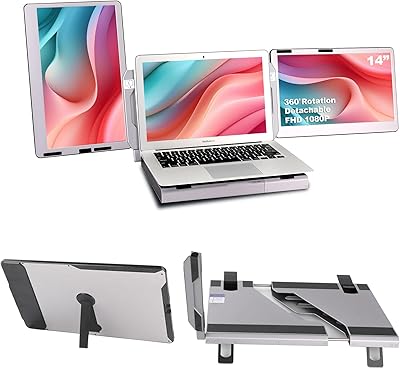
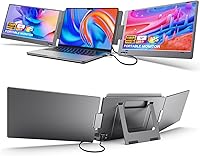
What makes the KYY triple-screen setup genuinely practical day-to-day is how few things you need to actually make it work. A single USB-C cable does the heavy lifting — and KYY includes a USB-A adapter for laptops that lack a full-function USB-C port with video output, which is a distinction worth checking on your specific machine before assuming compatibility. The hinge folds from 0 to 210 degrees, so you can reverse-fold the panels toward you for a client presentation without rearranging your entire desk. Five display modes — including extended, mirror, and portrait — give you real flexibility depending on the task. The 14-inch IPS panels hit 300 nits of brightness with a matte anti-glare finish and built-in blue light filtering, making longer sessions noticeably more comfortable.

Best For

This screen extender hits a sweet spot for people who routinely juggle multiple open windows and simply can't get by on a single display. Stock traders tracking live charts, developers splitting a code editor with documentation, and data analysts cross-referencing spreadsheets will feel an immediate difference. Frequent travelers who find docking stations too bulky will appreciate the one-cable setup — though honesty matters here: at just over seven pounds for the complete unit, this is not featherweight travel gear and suits short business trips far better than extended backpacking. Remote workers who regularly present to clients will find the reverse-fold design genuinely practical. Android users can also mirror or extend a compatible phone screen for media or light productivity tasks on a much bigger canvas.

User Feedback

Buyers consistently praise the freestanding hinge design — no clips, no height restrictions, and it works across a range of laptop thicknesses without awkward adjustments. Where opinions split is around setup: Windows users generally report a straightforward driver installation, while macOS users often have a harder time, with some noting additional steps or compatibility quirks depending on their OS version. Screen brightness draws mixed real-world reactions — indoors or in a dim café, 300 nits looks comfortable; near a bright window or outdoors, visibility takes a hit. Build quality earns cautiously positive marks, though a handful of long-term users mention hinge stiffness developing after months of daily folding. And the weight — something many buyers only register after unboxing — draws consistent comment. For a dedicated desk-hopper, manageable. For anyone packing light, a genuine trade-off.

Pros

  • Adding two extra 14-inch IPS screens through a single cable is a genuine productivity upgrade for multi-window workflows.
  • The freestanding hinge design eliminates clip-based mounting, so laptop thickness or lid angle never restricts your setup.
  • Five display modes — including portrait and mirror — offer flexibility that most basic monitor extenders simply do not provide.
  • A matte anti-glare surface reduces reflections and keeps eye strain manageable during long indoor work sessions.
  • The reverse-fold hinge lets you share your screen with someone sitting across from you without any additional hardware.
  • Built-in blue light filtering is a practical inclusion for users clocking extended daily hours in front of the display.
  • The USB-A adapter ships in the box, so laptops without a native video-capable USB-C port are not immediately excluded.
  • The wide hinge range covers everything from a near-flat shared-viewing angle to a steep upright working position with ease.

Cons

  • Driver installation is mandatory on every platform, and macOS users report a considerably rougher setup experience than Windows users.
  • At over seven pounds for the complete unit, it is far heavier than most items marketed as portable travel accessories.
  • The 300-nit brightness is workable indoors but noticeably insufficient near bright windows or in any outdoor environment.
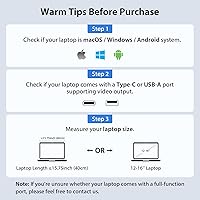
  • Not every USB-C port supports video output — compatibility hinges on your specific laptop hardware, not just the connector shape.
  • Some long-term users report hinge stiffness or loosening developing after several months of frequent daily folding and unfolding.
  • The unit only accommodates laptops between 12 and 16 inches, leaving users with smaller ultrabooks or larger workstations without an option.
  • There is no wireless connectivity of any kind — you are always tethered to a cable, which adds clutter on tight or shared desks.
  • Color accuracy is not a design priority for this panel, making it a weak choice for any color-sensitive professional work.

Ratings

The scores below for the KYY X90A 14-inch Laptop Screen Extender were generated by our AI rating engine after analyzing thousands of verified global purchases, with spam submissions, bot activity, and incentivized reviews actively filtered out before any score was calculated. Each category reflects a synthesis of real buyer experiences — from first-time setup to months of daily use — so both the genuine strengths and the friction points are represented without bias. Where users consistently praised or consistently struggled, the scores move accordingly.
Setup & Installation
58%
42%
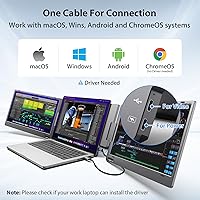
Windows users with a compatible full-function USB-C port typically get up and running within ten to fifteen minutes — download the driver, run the installer, plug in the cable, and the screens come to life. The included USB-A adapter is a thoughtful addition that prevents the need for a separate purchase in most cases.
The mandatory driver requirement catches many buyers off guard, particularly those expecting plug-and-play simplicity similar to a standard USB monitor. On macOS, the installation process frequently involves navigating system security prompts, and several users report having to troubleshoot for thirty minutes or longer before the screens were recognized correctly.
Display Quality
78%
22%
For productivity-focused tasks — spreadsheets, coding, document editing, or reference browsing — the 1080p IPS panels deliver genuinely sharp and consistent visuals. Viewing angles hold up well, which matters when sharing a screen with a colleague sitting at a slight offset rather than directly in front of the panel.
Color accuracy falls short of what photographers, video editors, or designers would require, and the 300-nit brightness ceiling limits usefulness in brighter environments. Users comparing these panels directly against a higher-quality laptop display will notice the difference in color depth and contrast, especially when viewing images or video content.
Build Quality
72%
28%
Out of the box, the unit feels reasonably solid for a mid-range portable product — hinges click into position with some resistance, the chassis does not flex dramatically, and the overall assembly instills enough confidence for regular desk-to-desk commuting. Most short-to-medium-term users are satisfied with how it holds together.
A subset of buyers who use it intensively every day report the hinge developing looseness or stiffness after several months of repeated folding. The plastic body also picks up light scratches more readily than expected, and a handful of users mention minor panel alignment issues appearing over time with extended daily use.
Portability
67%
33%
The no-clip, freestanding design is a genuine advantage — there is no height restriction, no awkward clamping around the lid, and it adapts to a wide range of laptop thicknesses without fuss. For someone moving between a home office and a co-working space in the same city, the single-cable approach simplifies packing considerably.
At just over seven pounds for the complete unit, this is significantly heavier than what most people imagine when they think of a portable travel accessory. Buyers who genuinely backpack or travel light for multi-day trips consistently report that the weight makes it impractical to carry alongside a full laptop bag and charger.
Ease of Daily Use
74%
26%
Once the driver is installed and the initial setup is behind you, day-to-day operation is relatively low-effort — plug in the cable and the screens activate without additional steps. The physical buttons for brightness and contrast adjustments sit in an accessible position on the panel edge and require no software to operate.
Switching between display modes requires cycling through hardware buttons rather than a software toggle, which lacks the immediacy and visibility of app-based switching found on some competing products. Several users also note that the screens occasionally require a re-plug after the host laptop wakes from sleep, adding a minor recurring interruption to the daily workflow.
macOS Compatibility
54%
46%
MacBook users who successfully navigate driver installation and security permissions do report the setup eventually working as advertised, with extended and mirror modes functioning across both panels reliably. A patient user willing to troubleshoot and consult the KYY support documentation can reach a stable working configuration on supported macOS versions.
The macOS setup experience is one of the most polarizing aspects of this product — security gating, driver permission prompts, and version-specific quirks have driven a meaningful number of Mac users to return the unit entirely. Those on newer macOS releases encounter compatibility friction that extends well beyond what the included instructions anticipate or address.
Windows Compatibility
81%
19%
Windows users consistently report the smoothest experience across all supported platforms — driver installation typically completes without complications, and all five display modes function as expected across both panels. Users running Windows 10 or 11 who confirm their USB-C port supports video output report high satisfaction with overall day-to-day stability.
A smaller percentage of Windows users encounter driver conflicts or display recognition issues, usually tied to specific GPU configurations or power-saving settings interfering with the USB-C video signal. These cases are less frequent than on macOS but remain worth noting for users running older Windows 10 builds or non-standard hardware setups.
Hinge & Flexibility
76%
24%
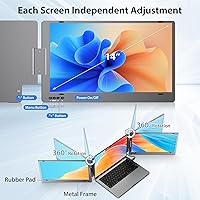
The 0-to-210-degree fold range gives this screen extender a genuine practical edge — panels can angle inward for focused solo work, reverse-fold outward for face-to-face sharing in meetings, or lay nearly flat for unconventional desk arrangements. Independent panel adjustment adds meaningful flexibility for adapting to varied workspaces throughout the day.
The hinge system, while impressively versatile in range, does not maintain its tension indefinitely under heavy daily use. Over several months, some users find individual panels begin drifting from their set position rather than holding firmly, which becomes particularly noticeable in portrait or steeply angled orientations where precise positioning matters most.
Brightness & Visibility
63%
37%
In a controlled indoor setting — a home office, a standard workspace, or a shaded corner of a café — 300 nits is workable and, combined with the matte anti-glare surface, produces a viewing experience that most productivity users find comfortable across several hours of continuous indoor work.
Sit near a window on a sunny day or attempt any outdoor use with this portable monitor attachment, and the brightness limitation becomes immediately apparent. Multiple users highlight this as one of the clearest real-world shortcomings, particularly when comparing directly to newer laptops whose built-in displays push well above 400 nits.
Value for Money
71%
29%
For buyers who genuinely need two additional screens and use them daily for work — stock traders, analysts, or multi-window developers in particular — the productivity gain from triple-screen access can justify the cost against the far bulkier alternative of a docking station and two separate external monitors. The included USB-A adapter adds incremental practical value.
At this price tier, buyers reasonably expect a smoother out-of-box experience than the driver-dependent setup delivers, and the weight and brightness limitations are not trade-offs typically associated with this spending level. Users who return the product due to macOS driver issues or unexpected weight often feel the friction did not match the price.
Cable Management
83%
The single-cable approach is one of the strongest practical advantages of the KYY triple-screen setup compared to older multi-monitor configurations requiring separate video and power cables for each display. A clutter-free desk is far easier to achieve, and packing up to change locations takes seconds rather than the minutes that multi-cable setups demand.
Because both display panels rely entirely on a single USB-C connection, the quality and capability of that one cable and port carry disproportionate importance. If the cable develops a fault or the connected port lacks full video output support, both screens fail simultaneously with no partial fallback available.
Multi-Display Modes
79%
21%
Having five distinct display modes — including portrait orientation and the ability to activate just one additional panel at a time — covers a wider range of real scenarios than most competing portable extenders offer. Developers who prefer a vertical reading layout and professionals who need to mirror content for an audience find the options genuinely practical.
Switching between modes via hardware buttons is functional but inelegant, requiring users to cycle through options without a clear on-screen indicator confirming which mode is currently active. Portrait mode in particular occasionally introduces display stability quirks with certain driver versions that necessitate a full driver restart or system reboot to resolve.
Eye Comfort
77%
23%
The combination of a matte anti-glare surface and a hardware-accessible blue light filter makes a noticeable difference during extended indoor work sessions. Writers, coders, and data analysts clocking four to eight hours daily in front of these panels generally report manageable fatigue levels compared to glossy-finish monitors without built-in filtering.
The blue light filter is toggled via physical buttons rather than software, making it less convenient to activate or adjust mid-session compared to OS-level filtering options. At lower brightness settings, some users perceive a subtle drop in text sharpness that can accumulate into noticeable eye strain during prolonged fine-print reading tasks.
Android Compatibility
61%
39%
For Android users whose devices genuinely support DisplayPort Alt Mode over USB-C, extending a phone screen onto the additional panels adds a useful dimension for media playback, video calls, or running mobile productivity apps on a much larger canvas. When the hardware prerequisites are met, the experience functions reliably and without major issues.
Android support is considerably more conditional than the product listing implies — compatibility depends entirely on whether the specific device supports video output over USB-C, and a significant number of popular Android phones and tablets do not. Buyers purchasing primarily for Android use without verifying this beforehand account for a notable share of disappointed reviews.
Presentation Mode
74%
26%
The reverse-fold capability — angling both panels outward to face someone across the desk — is one of the more creative and practically useful design choices in this product category. Consultants, freelancers, and sales professionals who regularly walk clients through work on-site consistently call out this feature as a standout practical benefit.
The reversed presentation angle works best on a flat, stable surface and becomes awkward on narrow desks or when the laptop itself needs to remain fully open simultaneously. The overall unit weight also means repositioning mid-meeting to execute the presentation fold takes more physical effort than a lighter competing extender would require.

Suitable for:

The KYY X90A 14-inch Laptop Screen Extender is genuinely well-matched to knowledge workers who operate across multiple locations — think the freelance developer who splits their day between a home office and a co-working space, or the financial analyst who needs three windows open and legible at once. If your workflow is reference-heavy — comparing spreadsheets side by side, monitoring dashboards, or keeping documentation open while you code — the jump from one screen to three is something you will feel immediately. Remote workers who do client-facing presentations will also find real practical value in the reverse-fold hinge design, which lets you angle the panels outward for shared viewing without any awkward repositioning. Stock traders who want a compact multi-chart setup without the bulk of a traditional docking station are another strong fit. Android users curious about extending their phone to a larger display for media or light productivity tasks will also get meaningful use out of the available screen modes. Broadly, this setup rewards people who have a recurring, daily need for screen real estate and are comfortable spending ten minutes on driver installation before their first session.
Not suitable for:

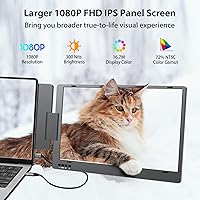
The KYY X90A 14-inch Laptop Screen Extender is a poor match for buyers expecting a completely plug-and-play experience — driver installation is non-negotiable on every supported platform, and macOS users in particular have reported a noticeably frustrating process that has driven some to return the unit outright. Ultralight travelers who scrutinize every ounce should also look elsewhere, since the complete unit tips past seven pounds, a figure that many laptop bags and commuter backs simply aren't comfortable absorbing as a daily extra. Anyone whose laptop's USB-C port is a charging-only connection without video output support will find this attachment incompatible regardless of cable or adapter — that check is worth doing before purchasing rather than after. Users who need accurate color reproduction for photo editing, video grading, or design work should be cautious as well, since the IPS panel here is tuned for productivity brightness rather than color-critical accuracy. Finally, those who frequently work outdoors or near bright windows may find the 300-nit panel too dim to be practical in those conditions.
Specifications

  • Panel Size: Each of the two extension screens measures 14 inches diagonally with a 16:9 aspect ratio, matching the typical footprint of a mid-size laptop display.
  • Resolution: Both panels output at 1920x1080 pixels, delivering full HD clarity across the extended display area without any upscaling or compression.
  • Panel Type: IPS (In-Plane Switching) technology provides consistent color reproduction and contrast when viewed from off-center angles, which is useful in shared or presentation scenarios.
  • Surface Finish: A matte anti-glare coating is applied to both screens to diffuse ambient light and reduce reflections during standard indoor use.
  • Brightness: Both panels are rated at 300 cd/m², which is adequate for typical indoor and dim café environments but may fall short near bright windows or outdoors.
  • Fold Range: The hinge system supports a 0 to 210-degree arc, including a reverse-fold position that angles the panels outward for face-to-face screen sharing.
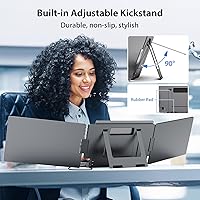
  • Kickstand Tilt: An integrated kickstand allows vertical tilt adjustment up to 90 degrees without requiring any external stand, clip, or accessory.
  • Connection Type: Primary connectivity is USB-C to USB-C; a USB-A adapter is included in the box for use with laptops that lack a video-capable USB-C port.
  • Driver Required: A proprietary driver must be downloaded and installed on Windows, macOS, or Android before the display panels will be recognized by the host device.
  • Laptop Fit: The freestanding design accommodates laptops with screen sizes between 12 and 16 inches and imposes no restriction based on lid thickness or hinge angle.
  • Display Modes: Five output configurations are supported: Extended, Mirror, Portrait, Single 2nd Screen, and Pre Mode, switchable via physical buttons on the panel edge.
  • Blue Light Filter: A low blue light mode is accessible through the on-board button controls and is intended to reduce eye fatigue during extended work sessions.
  • OSD Controls: Brightness, contrast, and sharpness can each be adjusted manually using physical buttons located along the monitor panel edge, independent of any software.
  • Dimensions: The folded unit measures 13.9 x 8.19 x 1.18 inches, placing it close in physical footprint to a standard 14-inch laptop for bag compatibility.
  • Item Weight: The complete assembly weighs 7.13 pounds, a figure that should be factored into any travel bag weight allowance alongside a laptop and other gear.
  • Model Number: The official model designation is X90A, manufactured and distributed under the KYY brand.

Related Reviews

Alecewey F2 14-inch Laptop Screen Extender
85%
85%
Portability
90%
Display Quality
88%
Ease of Use
92%
Setup Time
63%
Weight
More
BOSII S8 Pro 14-inch Portable Triple Monitor
76%
92%
Ease of Setup
89%
Portability & Weight
81%
Screen Clarity
67%
Build Quality
61%
Brightness & Visibility
More
Vixtan 14″ Laptop Screen Extender
84%
94%
Portability & Weight
90%
Ease of Setup
87%
Display Quality
89%
Compatibility with Laptops (13″-17″)
83%
Build Quality
More
ZUMWALT S3 14″ Triple Portable Monitor
70%
88%
Ease of Setup
74%
Display Quality
71%
Build Quality & Durability
66%
Portability & Weight
82%
Screen Flexibility & Ergonomics
More
CIDETTY S2 14-Inch Portable Laptop Monitor
76%
83%
Display Quality
91%
Portability & Form Factor
88%
Ease of Setup
71%
Compatibility Range
76%
Build Quality
More
BreezyLife 14″ Triple Portable Monitor Extender
74%
91%
Ease of Setup
74%
Display Quality
62%
Portability
71%
Build Quality
67%
Compatibility Range
More
POTTMACEE 14.2″ Laptop Screen Extender
87%
91%
Portability
88%
Display Quality
92%
Ease of Setup
84%
Compatibility
90%
Build Quality
More
Teamgee P1 12-inch Portable Monitor
73%
91%
Ease of Setup
88%
Portability
79%
Display Quality
72%
Clamp Mechanism
83%
Anti-Glare Performance
More
MarsMyth S1 14″ Portable Laptop Screen Extender
84%
94%
Ease of Setup
91%
Portability
88%
Display Quality
72%
Build Quality
93%
Compatibility
More
FOPO S680 14″ Quad Monitor Extender
71%
84%
Setup & Ease of Use
76%
Display Quality
61%
Portability
68%
Mac Compatibility
73%
Build Quality
More

FAQ

You do need to install a driver — the KYY X90A 14-inch Laptop Screen Extender is not plug-and-play in the traditional sense. Before your first use, you will need to download and install the provided driver software on your Windows, macOS, or Android device, because without it the screens simply will not be recognized. Most Windows users find the process fairly straightforward, but macOS users have reported needing extra steps depending on their system security settings.
It is compatible with macOS, but the setup tends to be more involved than on Windows. Depending on your macOS version, you may need to navigate privacy and security settings to allow the driver to load properly, and some users have run into compatibility quirks with newer OS releases. Checking the KYY support page for the most current macOS-compatible driver version before you start is a smart move.

Not necessarily, and this is worth verifying before you purchase. USB-C is a connector shape, not a guarantee of video output capability — some ports handle only charging and data, while others support display signals through DisplayPort Alt Mode or Thunderbolt. If your laptop's USB-C port does not carry a video signal, this screen extender will not function through it regardless of which cable or adapter you use. Your laptop's spec sheet or the manufacturer's website will tell you which ports support video output.

Yes, that weight is for the complete unit. Add your laptop, charger, and bag contents on top of that, and the total load becomes substantial. For someone moving between a home office and a nearby co-working space, it is manageable. For anyone packing light for flights or working from a backpack over long distances, the weight is a genuine trade-off worth thinking through before buying.

Yes, Single 2nd Screen mode lets you run just one of the extension panels while keeping the other folded. This is useful if you want to simplify your workspace, conserve a bit of power, or if your specific laptop setup handles one external display more reliably than two at once. You can switch between modes using the physical buttons on the panel edge.

It can, provided your Android device supports USB-C video output — commonly referred to as DisplayPort Alt Mode. Not every Android phone or tablet includes this capability, so confirm your device's specifications before purchasing. When compatible, you can mirror or extend your phone's screen onto the panels, which works reasonably well for media playback or running productivity apps on a bigger display.

At 300 nits, the panels are comfortable for standard indoor settings — typical office lighting, shaded café tables, or rooms where you control the ambient light. Near a bright window or in direct sunlight, visibility does take a meaningful hit. The matte surface helps manage glare, but it does not fully compensate for the moderate brightness ceiling in high-ambient-light environments.

There are no clips at all, which is one of the more practical aspects of this design. The portable monitor attachment is freestanding and relies entirely on the built-in kickstand rather than clamping onto your laptop's lid. Because of this, laptop thickness, lid curvature, and port placement are not limiting factors — as long as your laptop screen falls between 12 and 16 inches, the physical setup is straightforward.

Each panel articulates independently through its own hinge, so you can set them to different angles if needed. In practice, this means you could angle one panel toward a colleague for a quick review while keeping the other at your preferred working position. The kickstand handles vertical tilt up to 90 degrees, and the hinge itself covers a 0 to 210-degree range of lateral movement per screen.

Early feedback from most users is positive — the hinge feels solid and holds its position well out of the box. Over time, with heavy daily use, a portion of long-term owners have reported the hinge developing slight looseness or, in some cases, increased stiffness. It is not a universal complaint, but if you plan to fold and unfold this screen extender multiple times every single day, it is a durability consideration worth keeping in mind.