Wisecoco 14-inch 4K Stretched Bar Touchscreen Monitor
Wisecoco 14-inch 4K Stretched Bar Touchscreen Monitor — image 1
Wisecoco 14-inch 4K Stretched Bar Touchscreen Monitor — image 2
Wisecoco 14-inch 4K Stretched Bar Touchscreen Monitor — image 3
Wisecoco 14-inch 4K Stretched Bar Touchscreen Monitor — image 4
Wisecoco 14-inch 4K Stretched Bar Touchscreen Monitor — image 5
Wisecoco 14-inch 4K Stretched Bar Touchscreen Monitor — image 6
Wisecoco 14-inch 4K Stretched Bar Touchscreen Monitor — image 7
Wisecoco 14-inch 4K Stretched Bar Touchscreen Monitor — image 8
Wisecoco 14-inch 4K Stretched Bar Touchscreen Monitor — image 9
74%
26%

Overview

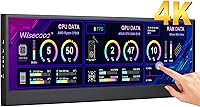
The Wisecoco 14-inch 4K Stretched Bar Touchscreen Monitor belongs to a genuinely unusual category — a long, thin display that sits horizontally across your desk rather than dominating your visual field like a standard monitor. Its 32:9 aspect ratio at 3840x1100 makes it purpose-built for tasks that benefit from a wide, shallow canvas: system telemetry, media timelines, chat feeds, and status dashboards. This isn't a primary display replacement. It sits in a mid-range price bracket that makes it accessible to enthusiasts who want something functional without overspending. One hard limit worth stating upfront: it has no Apple support whatsoever — no Mac, no iOS. Windows-only, full stop.

Features & Benefits

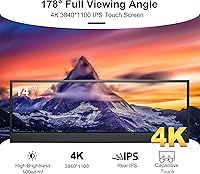
The IPS panel here punches above its weight for a secondary screen. At 500 nits of brightness, colors stay readable even in well-lit rooms, and the glossy finish gives images a crispness that matte panels can't quite match. The 10-point touchscreen responds quickly — input lag in day-to-day use feels tight. Connectivity covers HDMI, USB, and Type-C, though Type-C requires a USB 3.1-capable device; Thunderbolt ports won't work here. The display also ships with a blue light filter and anti-glare coating, which helps during extended sessions. Weighing just 2.29 lbs at under an inch thick, repositioning it requires almost no effort.

Best For

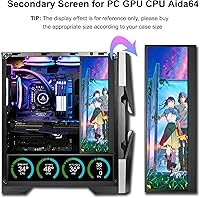
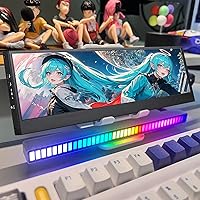
This bar monitor clicks into place for a specific kind of user. PC enthusiasts running Aida64 get a dedicated screen for CPU and GPU telemetry without cluttering their main display — though Aida64 itself must be downloaded and configured separately, so expect a short setup process. Streamers benefit from having chat and alerts visible at a glance without alt-tabbing. Developers can park a terminal window here. Content editors get a persistent timeline view. If your workflow genuinely benefits from a long, narrow secondary screen — and you're on Windows — this stretched display covers a lot of those bases efficiently.

User Feedback

With fewer than 80 reviews on record, it's too early to draw firm conclusions about long-term reliability. That said, the picture that emerges from buyers is cautiously positive. Color accuracy and sharpness come up repeatedly as highlights — people seem genuinely pleased with how vivid the panel looks for the price. On the other side, a few users ran into confusion around Type-C compatibility and the manual Aida64 setup, which suggests the out-of-box experience isn't plug-and-play for everyone. Some mention minor build quality inconsistencies between units. Portability, though, earns consistent praise — most find this secondary screen easy to position and move around.

Pros

  • The IPS panel delivers sharp, vivid color that buyers consistently praise given the display's compact size.
  • At 500 nits, brightness holds up comfortably in well-lit rooms without washing out.
  • The 10-point touchscreen is responsive and accurate, adding real utility to a secondary screen workflow.
  • Lightweight at 2.29 lbs and under an inch thick — easy to reposition, mount, or pack up.
  • Works well as a dedicated hardware telemetry screen, keeping Aida64 stats off your primary display.
  • Blue light filter and anti-glare coating help reduce eye fatigue during longer sessions.
  • The bar format is genuinely practical for streamers who want chat and alerts always in view.
  • HDMI, USB, and Type-C connectivity gives reasonable flexibility for most Windows desktop setups.

Cons

  • No Mac or iOS support at all — Apple users are completely excluded from using this display.
  • Type-C input requires USB 3.1; Thunderbolt ports won't work, and this isn't clearly flagged upfront.
  • Aida64 must be downloaded and configured manually — the telemetry use case is not plug-and-play.
  • With fewer than 80 reviews, long-term durability is genuinely difficult to assess with confidence.
  • Some buyers have noted build quality inconsistencies between individual units received.
  • The glossy screen surface picks up reflections noticeably in brighter room environments.
  • The 32:9 shape is highly specialized — if your workflow changes, this secondary screen has very limited versatility.
  • Only one USB port on the unit restricts peripheral connections directly through the display.

Ratings

Our AI-generated scores for the Wisecoco 14-inch 4K Stretched Bar Touchscreen Monitor were produced by analyzing verified buyer reviews from global markets, with spam, bot activity, and incentivized feedback actively filtered before scoring. Each category reflects real patterns of praise and frustration drawn from authentic user experiences, so both the strengths and the friction points are represented honestly.

Image Quality
83%
For a niche secondary display, the IPS panel genuinely impresses — reviewers consistently call out how sharp and vivid the image looks when running hardware dashboards or media timelines. Colors appear rich without aggressive oversaturation, and at 500 nits the panel holds its own even with room lights on.
The glossy surface is the main trade-off: in setups with windows or overhead lights behind the user, reflections can undercut the otherwise strong visual output. A handful of users also note that wide-format video content does not display particularly naturally given the unusual aspect ratio.
Color Accuracy
84%
Color vibrancy is one of the most frequently praised attributes across buyer reviews — the IPS panel renders gradients and color-coded data cleanly, which matters especially for system monitoring dashboards that rely on color as a key information layer. The A+ grade panel designation appears to hold up in real-world use.
Without published factory calibration data, it is difficult to quantify color accuracy precisely, and the glossy surface can skew perceived saturation under certain lighting conditions. Buyers doing critical color grading work should note that this display was not designed with professional color accuracy workflows in mind.
Connectivity
57%
43%
For Windows PC users connecting via HDMI, the experience is reliably straightforward — most reviewers using that path report a trouble-free connection. The presence of three interface options, HDMI, USB, and Type-C, does give meaningful flexibility across different desktop configurations.
The compatibility story gets messy quickly: Type-C only works if your source device supports USB 3.1 video output, and Thunderbolt ports will not transmit a signal — something many buyers discover only after purchase. Mac and iOS users are completely locked out, and the lack of prominent labeling around these limitations drives a disproportionate share of negative reviews.
Setup Experience
61%
39%
For the HDMI connection path, basic setup is genuinely quick — plug in, let Windows detect the display, and you are working within minutes. The on-screen controls for brightness, volume, and orientation are intuitive and do not require any additional configuration software to function.
The experience gets noticeably rougher once you move beyond basic display use. Configuring Aida64 requires downloading and setting up the software entirely on your own with no guided process, and Type-C connectivity adds further confusion since many buyers do not realize upfront that USB 3.1 video output support is a hard requirement.
Value for Money
71%
29%
Within the niche of bar-style secondary monitors with 4K resolution and touch capability, the pricing is competitive and undercuts many comparable alternatives. Buyers who went in with realistic expectations about the form factor and the manual setup process tend to feel they received fair value for what they paid.
Those who underestimated the setup complexity or hit unexpected compatibility walls often feel the overall experience did not justify the cost. The limited review pool also makes it harder to assess whether build quality is consistent across all production units, which introduces purchase risk that a more established brand would not carry.
Touch Responsiveness
76%
24%
The 10-point capacitive touch is genuinely accurate for a secondary screen — users report that gestures like pinch-to-zoom and tap navigation feel responsive in practice, particularly when interacting with live dashboards or adjusting media controls. The 3 to 5ms response time rarely feels sluggish.
Touch is a useful addition but not the primary reason most people buy this bar monitor, and it shows in how the feature is implemented. A few reviewers mention that palm rejection is inconsistent, which matters when you rest your hand near the screen while making brightness or layout adjustments.
Portability & Design
86%
At 2.29 lbs and under an inch thick, this is one of the most portable options in its form factor category — users who regularly rearrange their desk or travel with their setup appreciate how little effort repositioning requires. The slim profile fits naturally in front of a keyboard or along the base of a primary monitor.
The bar format does not ship with a stand engineered specifically for it, so many users end up improvising a placement solution using folded stands or third-party mounts. A few reviewers also note that the port placement can create an untidy cable situation on an otherwise clean desk.
Build Quality
67%
33%
Most buyers describe the physical build as solid enough for everyday desk use — the chassis does not feel flimsy when handled, and the overall construction is consistent with expectations at this price tier. Portability-focused buyers in particular tend to report a positive hands-on feel.
With fewer than 80 reviews in the pool, a subset of buyers mention inconsistencies between units, including minor cosmetic imperfections and slight variation in panel quality. It is too early to call these systemic, but the variability suggests quality control could be more tightly managed.
Eye Comfort
78%
22%
The blue light filter and anti-glare coating are meaningful real-world additions for users who run this secondary screen for long stretches alongside a primary monitor. Buyers using it for extended Aida64 monitoring or streaming sessions report noticeably less eye fatigue than they expected from a glossy panel.
Despite the anti-glare coating, the glossy surface still introduces reflective glare in environments with strong ambient light. Users who work near windows or under harsh overhead lighting often need to reposition the monitor carefully, which partially offsets the eye comfort benefits the filter provides.
Brightness & Visibility
81%
19%
At 500 nits, the stretched display performs well in typical indoor desktop environments — system stats, text, and color-coded dashboards all remain clear and readable without pushing the brightness control to its maximum. Buyers consistently cite visibility as one of this monitor's practical day-to-day strengths.
Outdoor use or environments with strong natural light are not where this panel excels, as the glossy surface compounds the challenge under intense ambient conditions. A few users also note that the brightness adjustment increments feel slightly coarse when trying to dial in a precise comfort level.
Software Integration
62%
38%
When Aida64 is properly set up, this secondary screen becomes a genuinely effective hardware monitoring station — CPU clocks, GPU temperatures, and fan speeds on a dedicated bar panel look clean and purposeful. Users who invest the initial configuration time consistently report high satisfaction with the finished result.
The setup is entirely self-directed with no included guidance, requiring new users to independently research how to build and configure Aida64 sensor panels. Those unfamiliar with the software describe the onboarding as more time-consuming than anticipated, and there is no documentation packaged with the display to bridge that gap.
Viewing Angles
79%
21%
Being an IPS panel, the stretched display holds color and contrast well across a wide horizontal arc, which is useful when it is positioned slightly off-center or shared briefly with a colleague sitting nearby. Vertical angle performance is less critical given the low-profile placement most users adopt.
The unusually wide format means that viewing the far left or right edges from a head-on center position can reveal slight uniformity variation at extreme angles. This is unlikely to affect the typical monitoring use case, but it is worth knowing for anyone who plans to share the screen regularly.
Form Factor Fit
73%
27%
For buyers who specifically need a 32:9 bar-style display — for gaming stat overlays, telemetry panels, or persistent streaming dashboards — this secondary screen fills a genuine gap in the market at a competitive price. The dimensions make it adaptable to a range of desk configurations without demanding a large dedicated footprint.
The 32:9 shape is highly specialized, and buyers who did not fully think through their intended use case often find themselves with a display that lacks versatility for other tasks. If the primary use case does not pan out, repurposing this as a general secondary monitor for everyday computing is genuinely awkward.

Suitable for:

The Wisecoco 14-inch 4K Stretched Bar Touchscreen Monitor is a strong fit for Windows PC users who have a specific, well-defined need for a long, narrow secondary display. PC enthusiasts running hardware monitoring software like Aida64 will find the 32:9 form factor ideal for keeping CPU, GPU, and temperature stats visible at all times without sacrificing real estate on their primary screen. Streamers and content creators benefit similarly — a persistent chat feed, alert panel, or editing timeline on a dedicated bar display reduces the need to constantly break focus. Developers who like keeping a terminal or log window parked somewhere visible will also find this a practical desk addition. For anyone who has looked at their setup and thought they needed a narrow screen purely for status info or monitoring, this bar monitor is built for exactly that kind of intentional, task-specific use.

Not suitable for:

Anyone in the Apple ecosystem should stop here — the Wisecoco 14-inch 4K Stretched Bar Touchscreen Monitor explicitly does not support Mac or iOS, so if your daily driver is a MacBook, iPhone, or iPad, this stretched display simply won't work for you. Beyond platform limits, the 32:9 aspect ratio is not a general-purpose shape; buyers hoping to use it as a flexible second screen for browsing, documents, or video will find the narrow height genuinely limiting rather than helpful. The Type-C connection also comes with a real caveat — your source device must support USB 3.1 for audio and video output, and Thunderbolt ports are not compatible, which tends to catch people off guard. If you're not comfortable doing a bit of manual software configuration, the Aida64 telemetry use case requires setup that isn't automated out of the box. Finally, shoppers who prioritize well-documented long-term reliability should know the review pool is still modest, which makes durability harder to assess than it would be for a more established product.

Specifications

  • Screen Size: The display measures 14 inches diagonally in a slim horizontal bar enclosure designed to sit unobtrusively alongside a primary monitor.
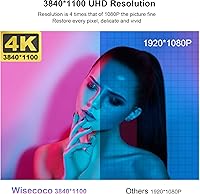
  • Resolution: Native resolution is 3840x1100 pixels, delivering a high pixel density suited to crisp text, sharp telemetry data, and detailed timeline views.
  • Aspect Ratio: The 32:9 ultra-stretched aspect ratio makes the display roughly twice as wide as it is tall, purpose-built for horizontal, information-dense workflows.
  • Panel Type: Uses an IPS (In-Plane Switching) panel, providing consistent color reproduction and wide viewing angles that TN alternatives cannot match.
  • Brightness: Peak brightness is rated at 500 nits, sufficient for readability in well-lit office and desktop environments without significant washout.
  • Touch Input: Supports 10-point capacitive touch across the full screen surface, enabling multi-finger gestures including pinch-to-zoom.
  • Response Time: Touch response time is rated at 3 to 5 milliseconds, adequate for interactive monitoring dashboards and light gesture-based tasks.
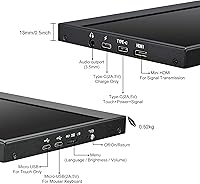
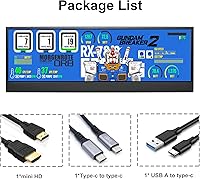
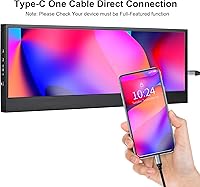
  • Connectivity: Offers HDMI, USB, and Type-C ports; the Type-C port requires a USB 3.1-capable source device for audio and video signal — Thunderbolt is not compatible.
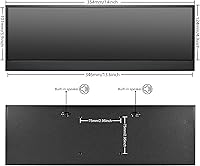
  • Dimensions: Physical dimensions are 0.8 × 14 × 4.9 inches (depth × width × height), slim enough to place flat in front of or below a standard monitor.
  • Weight: The unit weighs 2.29 lbs, light enough to reposition by hand without any tools or assistance.
  • Screen Surface: The panel has a glossy finish, which enhances perceived color richness and contrast but reflects ambient light more than a matte surface would.
  • Eye Care: Includes a built-in blue light filter and anti-glare technology intended to reduce eye fatigue during extended use sessions.
  • OS Compatibility: Compatible with Windows operating systems only; Mac, iOS, and Android devices are explicitly not supported.
  • Refresh Rate: Operates at a standard 60Hz refresh rate, appropriate for static dashboards, telemetry readouts, and secondary display monitoring tasks.
  • Model Number: Manufacturer model number is R140U01T-HB, produced by Wisecoco.

Related Reviews
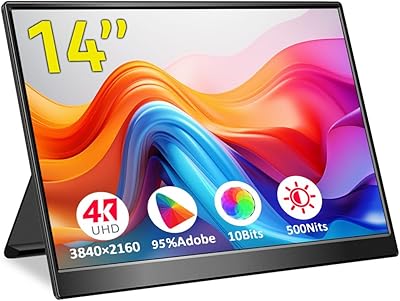
Magedok 14-Inch 4K Portable Monitor
85%
93%
Display Quality
88%
Portability
90%
Ease of Setup
91%
Color Accuracy
58%
Sound Quality
More
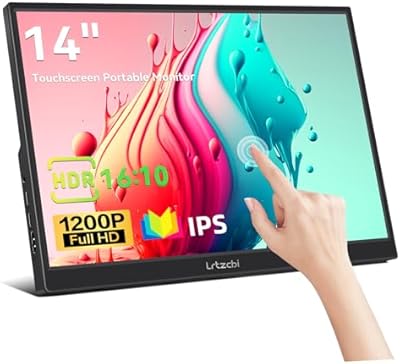
Lrtzcbi 14-inch Portable Touchscreen Monitor
74%
88%
Value for Money
79%
Image Quality
72%
Touch Responsiveness
91%
Portability
58%
Kickstand Stability
More
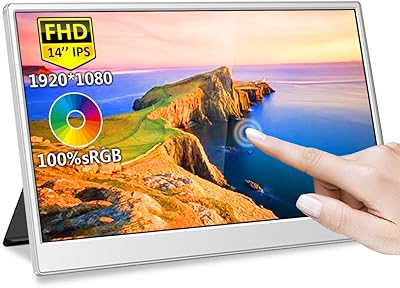
Magedok MG140-FT02 14-Inch Portable Touchscreen Monitor
74%
91%
Portability
74%
Display Quality
77%
Color Accuracy
63%
Touchscreen Responsiveness
79%
Connectivity & Compatibility
More
Lenovo ThinkVision M14t 14-inch Touchscreen Mobile Monitor
79%
93%
Portability
88%
Build Quality
76%
Display Quality
54%
Glare & Reflectivity
82%
Touch Responsiveness
More
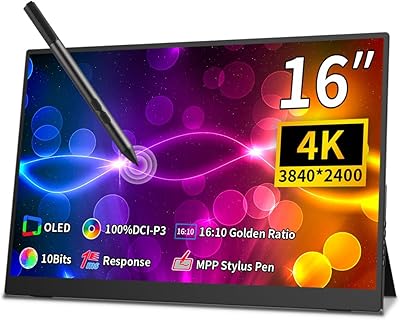
Magedok 16-inch 4K OLED Touchscreen Portable Monitor
85%
91%
Display Quality
89%
Portability
75%
Touchscreen Performance
65%
Brightness in Bright Environments
88%
Gaming Performance
More
Seventour 14-inch 4K Android Car Headrest Monitor
82%
88%
Display Quality
92%
Ease of Installation
78%
Connectivity
65%
Sound Quality
82%
Mobile Mirroring Performance
More
InnoView 14-inch OLED Portable Monitor 4K UHD
85%
92%
Display Quality
88%
Portability
90%
Color Accuracy
94%
Response Time (Gaming)
85%
Build Quality
More
Portkeys PT5 II 5″ Field Monitor
79%
88%
Image Clarity
84%
Build Quality & Portability
57%
Outdoor Visibility
91%
Monitoring Tools & Scopes
86%
3D LUT Support
More
ViewSonic VP2768a-4K 27-Inch 4K Monitor
86%
94%
Color Accuracy
88%
Ergonomics & Comfort
91%
Value for Money
89%
Build Quality
85%
Ease of Setup
More
ViewSonic VX3267U-4K 32-inch 4K IPS Monitor
74%
91%
Image Sharpness
83%
USB-C Functionality
76%
Color Accuracy
54%
HDR Performance
47%
Stand & Ergonomics
More

FAQ

No — the Wisecoco 14-inch 4K Stretched Bar Touchscreen Monitor is a Windows-only display and does not support Mac, iOS, or any Apple hardware. If your daily driver is a MacBook or you rely on an iPhone or iPad, you will need to look at a different product entirely. This is a hard incompatibility, not a workaround situation.

You will need to download and configure Aida64 on your own — it does not come pre-installed or pre-configured. The monitor itself just functions as a display; setting up your telemetry panels within the software is a separate manual process. It is well-documented online and most PC enthusiasts find it manageable, but go in expecting a short setup session rather than a plug-and-play experience.

Not necessarily. The Type-C port on this bar monitor only works for audio and video signal if your source device supports USB 3.1 output — a standard USB-C charging port or a Thunderbolt port will not transmit a picture. If you are unsure whether your laptop or PC meets that requirement, HDMI is the more reliable fallback connection to use.

It is really designed as a secondary display. The 32:9 stretched format is a poor fit for everyday tasks like web browsing, word processing, or watching video in a conventional layout. Most users pair it with a primary monitor and dedicate this stretched display to something specific — hardware stats, a streaming chat feed, a code terminal, or a media timeline.

On most Windows 10 and Windows 11 systems, touch is recognized automatically through built-in HID drivers, so you typically do not need to install anything extra. That said, a small number of users report needing a driver update on certain system configurations before touch becomes fully functional. If touch does not work immediately, checking Windows Update or your motherboard manufacturer's driver page is a good first step.

VESA compatibility is not confirmed in the product specifications, so we cannot say for certain. Given the slim bar form factor, most users simply rest it flat on the desk surface, prop it against their main monitor stand, or use a third-party bar monitor stand. If mounting is a priority for your setup, it is worth contacting the seller directly to confirm before purchasing.

It can be, depending on where your light sources are positioned. Glossy panels look richer and more vibrant than matte ones under controlled lighting, but they do pick up reflections from windows or overhead fixtures. If your workspace gets direct sunlight or strong overhead light, some glare is likely. Repositioning the monitor slightly or adjusting your window covering usually helps manage it.

For basic use, you connect it via HDMI or Type-C, and Windows should detect it as a secondary display automatically. You can then adjust orientation, brightness, and scaling in your display settings as you would with any monitor. The extra effort only comes in if you want to use it for Aida64 telemetry, which requires you to download the software and configure the layout panels yourself.

Buyer impressions are cautiously positive but not unanimous. Most describe it as reasonably sturdy given its price tier, and the lightweight construction feels intentional rather than fragile. A handful of reviews do mention minor inconsistencies in build quality between individual units, so there is some variability. With fewer than 80 reviews total, it is genuinely difficult to draw firm conclusions about long-term durability.

Most streamers dedicate this secondary screen to their chat feed, alert notifications, and OBS source or scene overview — anything they want visible at a glance without covering their main gameplay display. The long, narrow format sits naturally along the top or bottom edge of a primary monitor, keeping everything in one sightline. Some also use it to monitor stream health stats or run a music player interface during live sessions.